Create a Password Protected Folder In Windows 7
0 Comments
»
- Create a new folder (i.e. right click --> new --> folder).
- A folder should appear, name it whatever you want, then right click again this time selecting new --> "Text Document".

- In this document, type the following:
clsCode Source
@ECHO OFF
title Folder PrivateFolder
if EXIST "Control Panel.{21EC2020-3AEA-1069-A2DD-08002B30309D}" goto UNLOCK
if NOT EXIST PrivateFolder goto MDLOCKER
:CONFIRM
echo Are you sure you want to lock the folder(Y/N)
set/p "cho=>"
if %cho%==Y goto LOCK
if %cho%==y goto LOCK
if %cho%==n goto END
if %cho%==N goto END
echo Invalid choice.
goto CONFIRM
:LOCK
ren PrivateFolder "Control Panel.{21EC2020-3AEA-1069-A2DD-08002B30309D}"
attrib +h +s "Control Panel.{21EC2020-3AEA-1069-A2DD-08002B30309D}"
echo Folder locked
goto End
:UNLOCK
echo Enter password to unlock folder
set/p "pass=>"
if NOT %pass%== PASSWORD goto FAIL
attrib -h -s "Control Panel.{21EC2020-3AEA-1069-A2DD-08002B30309D}"
ren "Control Panel.{21EC2020-3AEA-1069-A2DD-08002B30309D}" PrivateFolder
echo Folder Unlocked successfully
goto End
:FAIL
echo Invalid password
goto end
:MDLOCKER
md PrivateFolder
echo PrivateFolder created successfully
goto End
:End
CHEAT: If you like, you can also download the already finished file here: http://www.4shared.com/file/wy_0UrgW/PassCode.html
- Notice in the above phrase "PASSWORD goto FAIL" (highlighted in red). simply replace the word "PASSWORD" with any phrase you like. This word will serve as your new password for your folder.
- Select file --> "save". Under "file name" replace the ".txt" with ".bat". Under "save as type" select "All Files" from the drop down menu --> select save.

- After you have saved the document, double-click the bat file you just created and a folder named "PrivateFolder" should appear. Double-click this folder and add to it any files you wish to password protect.
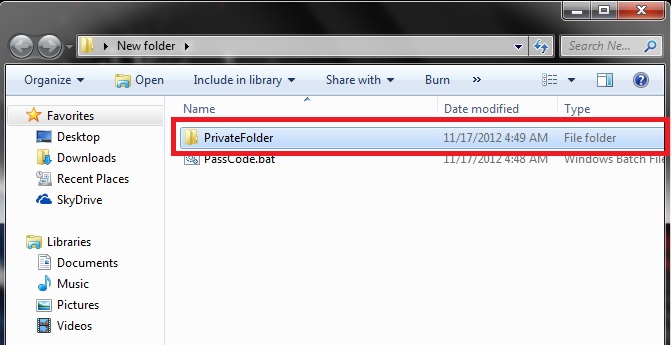
- After you have finished adding files, double-click your bat file once again and it should prompt you with the message "Are you sure you want to lock the folder?" Type "Y" and click enter. Your password protected folder should now disappear.

- To retrieve the password protected folder, double-click your bat folder once more and you should be prompted with a message telling you to "Enter password to unlock folder". Type the password (accurately of course) and the folder should reappear with your protected files.


 Subscribe by RSS


