Create a Password Protected Folder In Windows 7

  • Create a new folder (i.e. right click --> new --> folder).
  • A folder should appear, name it whatever you want, then right click again this time selecting new --> "Text Document".
 

  • In this document, type the following:
cls
@ECHO OFF
title Folder PrivateFolder
if EXIST "Control Panel.{21EC2020-3AEA-1069-A2DD-08002B30309D}" goto UNLOCK
if NOT EXIST PrivateFolder goto MDLOCKER
:CONFIRM
echo Are you sure you want to lock the folder(Y/N)
set/p "cho=>"
if %cho%==Y goto LOCK
if %cho%==y goto LOCK
if %cho%==n goto END
if %cho%==N goto END
echo Invalid choice.
goto CONFIRM
:LOCK
ren PrivateFolder "Control Panel.{21EC2020-3AEA-1069-A2DD-08002B30309D}"
attrib +h +s "Control Panel.{21EC2020-3AEA-1069-A2DD-08002B30309D}"
echo Folder locked
goto End
:UNLOCK
echo Enter password to unlock folder
set/p "pass=>"
if NOT %pass%== PASSWORD goto FAIL
attrib -h -s "Control Panel.{21EC2020-3AEA-1069-A2DD-08002B30309D}"
ren "Control Panel.{21EC2020-3AEA-1069-A2DD-08002B30309D}" PrivateFolder
echo Folder Unlocked successfully
goto End
:FAIL
echo Invalid password
goto end
:MDLOCKER
md PrivateFolder
echo PrivateFolder created successfully
goto End
:End
Code Source
 
CHEAT: If you like, you can also download the already finished file here: http://www.4shared.com/file/wy_0UrgW/PassCode.html

  • Notice in the above phrase "PASSWORD goto FAIL" (highlighted in red). simply replace the word "PASSWORD" with any phrase you like. This word will serve as your new password for your folder.
  • Select file --> "save". Under "file name" replace the ".txt" with ".bat". Under "save as type" select "All Files" from the drop down menu --> select save.


  •  After you have saved the document, double-click the bat file you just created and a folder named "PrivateFolder" should appear. Double-click this folder and add to it any files you wish to password protect.
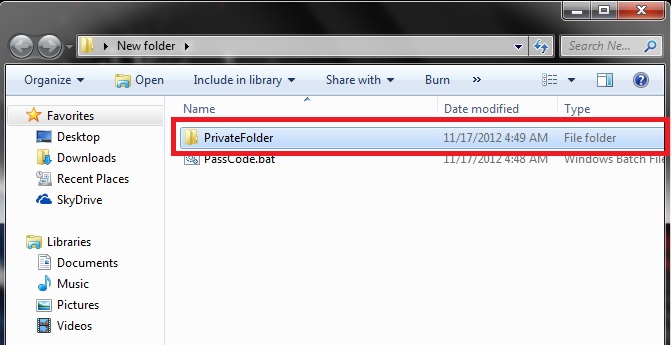
 

  • After you have finished adding files, double-click your bat file once again and it should prompt you with the message "Are you sure you want to lock the folder?" Type "Y" and click enter. Your password protected folder should now disappear.
 

  • To retrieve the password protected folder, double-click your bat folder once more and you should be prompted with a message telling you to "Enter password to unlock folder". Type the password (accurately of course) and the folder should reappear with your protected files.

Enable/Disable 3D Menus In Windows XP

Start –> Run –> Type Regedit –> Hit enter.

Browse to HKEY_CURRENT_USER\Control Panel\Desktop

Double click the Reg Binary “UserPreferencesMask”

To enable 3D menus type: 9E 3E 05 80 (under value data)

To disable 3D menus type: 9E 3E 07 80 (under value data)

Reboot.

Faster Shutdown (Windows Xp)

Note: You should create a restore point before this process i.e. Click Start –> all programs –> accessories –> system tools –> system restore. Select “Create a restore point.” Click next. Under “restore point description” type “shutdown backup” (without quotes). Click create.

-----------------------------------------------------------------------------------------------------

Start –> run –> type “regedit” (without quotes). Hit enter.

Browse to: HKEY_CURRENT_USER\Control Panel\Desktop

Modify the string value: “AutoEndTasks” set the value data to 1.

Modify/Create the string value: “WaitToKillAppTimeout” set the value data to 1000.

Modify/Create the string value: “HungAppTimeout” set the value data to 1000.

Browse to HKEY_LOCAL_MACHINE\SYSTEM\CurrentControlSet\Control

Modify the string value: “WaitToKillServiceTimeout” set the value data to 1000.

Reboot.

Restore The Address Bar Option To The Taskbar (Xp SP3)

Note: You will need the following dll for this tweak: browseui.dll

-----------------------------------------------------------------------------------------------------

Restart your computer.
Before the windows logo, tap the F8 key repeatedly until you are presented with a Windows Advanced Options menu.
Select the option Safe Mode with the arrow keys.
Then press enter on your keyboard to boot into Safe Mode.

68224pick-safe-mode

-----------------------------------------------------------------------------------------------------

Once in safe mode, browse to my computer –> c drive –> windows –> system 32. Copy and paste browseui.dll into the C:\windows\system32 folder. Restart.

Disable Winrar Notification Popup With Ollydbg

Note: you will need to download the following program for this tweak: Ollydbg

-----------------------------------------------------------------------------------------------------

Open Ollydbg. Select file –> open.

Under “look in” select the C drive and browse to program files –> winrar –> winrar.exe. Select open.

winrar2

-----------------------------------------------------------------------------------------------------

If you are presented with the following warning, click ok.

error

-----------------------------------------------------------------------------------------------------

Press ctrl – g on your keyboard and type “0043FF47” at the prompt.

prompt

Click ok.

-----------------------------------------------------------------------------------------------------

Right click on the address that is highlighted. Select binary –> fill with NOPs.

Now right click, select copy to executable –> All modifications.

Disable Winrar Notification Popup With Resource Hacker

Note: You will need to download the following program for this tweak: Resource hacker

-----------------------------------------------------------------------------------------------------

Open resource hacker.  Select file –> open.

Under “look in” select the C drive and browse to program files –> winrar –> winrar.exe. Select open.

winrar

-----------------------------------------------------------------------------------------------------

On the left hand side of recourse hacker, select the plus sign next to “dialogue.”

Scroll down and click the plus sign next to “Reminder.”

Right click 1033 and select “Delete Resource”

deleteresource

You will be asked if you are sure you want to delete the resource. Select yes.

Select file –> save.

Show Your Windows Version On Your Desktop

Start -> Run -> Regedit.

On the left hand side browse to HKEY_CURRENT_USER\Control Panel\Desktop

Modify/Create the DWORD value "PaintDesktopVersion" (without quotes)

Give it the value data 1 and reboot.

Restore The Internet Explorer Desktop Icon

Start -> Run -> Type "Notepad"

Paste the following into notepad:

Windows Registry Editor Version 5.00[HKEY_CURRENT_USER\Software\Microsoft\Windows\CurrentVersion\Explorer\HideDesktopIcons\NewStartPanel]"{871C5380-42A0-1069-A2EA-08002B30309D}"=dword:00000000 [HKEY_CURRENT_USER\Software\Microsoft\Windows\CurrentVersion\Explorer\HideDesktopIcons\ClassicStartMenu]"{871C5380-42A0-1069-A2EA-08002B30309D}"=dword:00000000

File -> save as. Under "Save as type" select All files.

On the left hand side select "Desktop"

Under file name, type: "restore.reg" (without quotes). Select save.

Double click the new registry file. You should get the following warning:


Select yes.

Enable Clear Pagefile At Shutdown

Start -> Run -> Type "Regedit" (without quotes)

Browse to: HKEY_LOCAL_MACHINE\SYSTEM\CurrentControlSet\Control\Session Manager\Memory Management

Modify/Create the DWORD value "ClearPageFileAtShutdown" (without quotes) Give it the value data of 1.

Exit registry and reboot.

Turn Inprivate Filtering On Indefinately (Internet Explorer 8)

Start -> Run -> Notepad.

Paste the following:

Windows Registry Editor Version 5.00


[HKEY_CURRENT_USER\Software\Microsoft\Internet Explorer\Safety\PrivacIE]"StartMode"=dword:00000001

Save it as "Auto.reg" (without quotes).

Double click on the new registry file. A dilogue box asking if you want to add the information to the registry should popup, select yes.

Create Registry Files To Toggle Your Screensaver

Turn The Screen Saver Off

Start -> run -> notepad.

Paste the following:

Registry Editor Version 5.00

[HKEY_CURRENT_USER\Control Panel\Desktop]
"ScreenSaveActive"="0"

save it as "scrnsaveroff.reg" (without quotes)

To activate this file, simply click on it. *see note*

Turn The Screen Saver On

open notepad once again, and paste the following:

Registry Editor Version 5.00

[HKEY_CURRENT_USER\Control Panel\Desktop]
"ScreenSaveActive"="1"

save it as "scrnsaveron.reg" (without quotes)

To activate this file, simply click on it.

(Note: once you click on one of the registry files, a dialogue box will come up asking if you want to add the information to the registry. Click yes.)

Get Old Firefox Addons To Work With Newer Builds

1. Open Firefox, type "about:config" into the location bar (without quotes)

2. Click "I'll be careful I promise" when the confirmation page comes up.

3. Below "preference name" right click, select new -> boolean.

4. Call it "extensions.checkCompatibility" (without quotes). Set the value to false.

What this does is disables Firefox from checking addon compatibility. So (after the tweak) when you install an older addon to a newer build of firefox, firefox won't check to see if it's compatible with it and will allow you to install.

Remove .net Framework Assistant From Firefox

(note:before doing step one, firefox should be closed)

1. Locate C:\WINDOWS\Microsoft.NET\Framework\v3.5\Windows Presentation Foundation\DotNetAssistantExtension

2. Delete everything in the folder.

3. Type about:config in the firefox address bar. Under filter type: "general.useragent.extra.microsoftdotnet" (without quotes)

4. Right click on the entry and select reset.

5. Restart Firefox.

Disable All Balloon Tips

1. Start -> Run -> Notepad.

2. Paste the following:

Windows Registry Editor Version 5.00

[HKEY_CURRENT_USER\Software\Microsoft\Windows\CurrentVersion\Explorer\Advanced]
"EnableBalloonTips"=dword:00000000

[HKEY_CURRENT_USER\Software\Microsoft\Windows\CurrentVersion\Explorer\Advanced]
"FolderContentsInfoTip"=dword:00000000

[HKEY_CURRENT_USER\Software\Microsoft\Windows\CurrentVersion\Explorer\tips]
"Show"=dword:00000000

[HKEY_CURRENT_USER\Software\Microsoft\Windows\CurrentVersion\Explorer\Advanced]
"StartButtonBalloonTip"=dword:00000000

[HKEY_CURRENT_USER\Software\Microsoft\Windows\CurrentVersion\Explorer\Advanced]
"ShowInfoTip"=dword:00000000

[HKEY_CURRENT_USER\Software\Microsoft\Windows\CurrentVersion\Policies\Explorer]
"NoSMBalloonTip"=dword:00000000


3. Save it as disableall.reg

4. Double click on disableall.reg, a dialogue box should come up asking if you want to add the information, choose yes.

Backup Your Firefox Passwords

1. Navigate To: My Computer -> C Drive -> Documents And Settings -> User -> Application Data -> Mozilla -> Profiles -> nyj4og2r.default

2. From here locate:

signons.txt

signons3.txt

key3.db

And copy them to the place you want to back them up. To restore them later, just replace the signons and key3.

Create A Batch File To Restart The Dns Service

1. Start -> Run -> Notepad.

2. Paste the following:

net stop dnscache
net start dnscache

3. Call it "restartdns.bat" (without quotes)

Disable The Dns Client Service

1. Start -> Control Panel -> Administrative Tools -> Services.

2. Right click on the dns service and select properties. Under Startup type select disabled. Under service status select stop.

Disable Automatic Expanding Folder Trees

1. Start -> Run -> Regedit.

2. Locate: HKEY_CURRENT_USER\Software\Microsoft\Windows\CurrentVersion\Explorer

3. Modify/Create the Dword value "FriendlyTree" (without quotes)

4. Set the value data to 0.

Add Notepad To Right Click

1. Start -> Run -> Notepad.

2. Paste the following:

Windows Registry Editor Version 5.00

[HKEY_LOCAL_MACHINE\SOFTWARE\Classes\Directory\shell\Notepad]
@="Notepad"

[HKEY_LOCAL_MACHINE\SOFTWARE\Classes\Directory\shell\Notepad\command]
@="C:\\Windows\\notepad"

3. Save it as "notepad.reg"

4. Open it, it will ask you if you want to add the data, select yes.

Display Your Desktop Icons In List View

1. Follow this link and download desktop list view self extracting or zip.

2. Double click the "desktoplistview.exe" and your desktop icons should be organized in list view.

More:

Desktop List View To Start Up When Your Computer Starts

1. Go to start -> All Programs -> Right click on startup and select explore. Copy the desktoplistview.exe into the startup folder.

I Want My Icons Back The Way They Were!

Im sorry to say this, but, you can't, it's impossible (just kidding)

1. Go back to the folder you unzipped desktop list view into and double click "unload.bat" Your icons should now be the way they were before.

Related Posts Plugin for WordPress, Blogger...